Showing posts with label Mail. Show all posts

Wednesday, 21 November 2012

How to terminate yahoo account

Step 1:

Click on the below link. This will directly take you to yahoo account termination page.

yahoo account termination

Step 2:

Enter your mail id and password.

Step 3:

Enter the validation text and click on " Terminate this Account "


How to terminate gmail account

Step 1:

Signin into google account or gmail account.

Step 2:

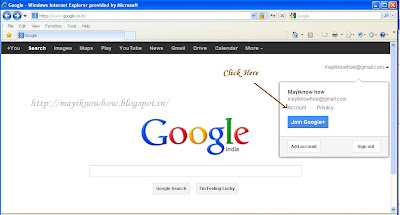
Click on Account


Step 3:

Click on "Close entire account and delete all services and info associated with it"


Step 4:

Enter all the required information and click on "DELETE GOOGLE ACCOUNT"


Now, your google or gmail account will be deleted.

Tuesday, 20 November 2012

How to insert gif signature in yahoo mail ?

STEP 1:

Go to Options (which is at the left corner in the mail. See Below image for reference.)

Select Mail Options


STEP 2:

Click on Signature tab in Mail Options.

STEP 3:

Select "Show a rich text signature" from the drop down.

STEP 4:

Open the gif image which you want to use as signature in Internet explorer.
Then Copy the image and Paste it in the signature.


Now, your gif image is ready to be used as signature. Enjoy!!

How to recover deleted mails from outlook 2010

STEP 1:

Go to Folder Tab  -- > Recover Deleted Items

STEP 2:

Select the mail or mails that you want to recover. Then Press recover icon. ( Which is at the top : Step 2 in the below figure)


How to create a new pst file in outlook 2010

STEP 1:

Go to Home  tab in Outlook 2010 --> New Items --> More Items --> Outlook Data File


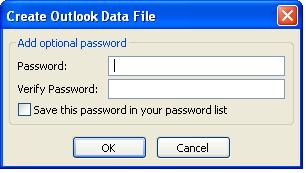
STEP 2: Following dialogue box will appear.
Give some name to your PST mail folder and click ok.


STEP 3:  Enter password to make your PST mail box secure and click ok.


STEP 4:  Now, your New PST will appear in Outlook 2010.

Monday, 19 November 2012

How to insert gif images in Outlook 2010


Outlook 2010 and Outlook 2007 does not support gif images.

You can not insert gif images in Outlook 2010 and Outlook 2007. Even if we insert gif images in Outlook 2010 and Outlook 2007 , that will appear as normal image and effect will not be appear.

But, Outlook support sending the gif images as an attachment.

Also, we can view the gif images in outlook2010 if we receive them from somebody else. But, we cannot send them as an inline image in Outlook 2010 and Outlook 2007.

How to add gif image in outlook 2010 signature

Outlook 2010 and 2007 does not support gif images as signatures.

If anyone know how to insert animated image in outlook 2010/2007, then please share with us.

You can insert an image (other than gif ) as your signature in outlook.

Insert image in outlook signature

How to add Image to signature in outlook 2010

How to insert Image in outlook 2010 Signature?

Step 1:   Click on New Email


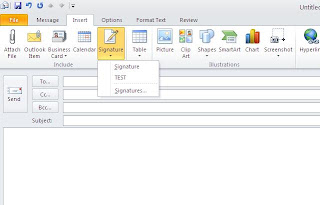
Step 2:  Go to Insert Tab -- > Signature


Step 3:  Click on Signatures...

A dialogue box with name "Signatures and Stationery " Will be opened.

Step 4:    Click New button . Give some name to the signature that you want to add.


Step 5: Click on Insert Image option in the Editor. Then , Select the image that you want to use as signature


Step 6:  Click OK


Now, you can send you image signature to your friends.